Journal · Explainer · 4 min read
Why does my cable charge but not transfer data?
Power and data travel on different wires. One can work while the other is quietly broken
You plug your phone into a laptop to move photos. The battery icon shows charging. The laptop shows nothing. How can the same cable carry power and not data?
Short answerPower and data use different wires inside the cable. Charge-only cables leave the data wires out, cheap or damaged cables can lose them, and phones often default to charging only until you unlock them and choose file transfer. Try a known data cable, unlock the phone, accept any prompt, and pick File transfer on Android or Trust on iPhone.
What is inside the cable, by the numbers
A basic USB connection has four roles: power, ground, and a pair of data wires called D+ and D-. Wikipedia's summary of USB 2.0, dated to the April 2000 specification, gives High Speed at 480 Mbit/s over that one pair. Power flows on separate wires, so a cable can charge perfectly while its data pair is missing or broken. The same summary notes that a phone may even reject a non-standard charge-only cable as an unsuitable charger, which is one more reason they cause confusion.
Charge-only cables exist, but outside the rules. The same summary notes that the standard requires charging cables to support at least USB 2.0 data, and that non-standard charge-only cables short or omit the data wires.
Faster data needs more wires. USB-C cables with only the USB 2.0 pair top out at USB 2.0 speed, as the USB-IF's packaging guidelines note. Faster tiers, which the USB-IF asks makers to describe as USB 5Gbps, 10Gbps, 20Gbps, 40Gbps or 80Gbps, need full-featured cables with extra high-speed pairs.
Phones set limits too. Apple says the USB-C cable included with iPhone supports charging and USB 2 data, and that Pro models reach USB 3.2 Gen 2 speeds of up to 10 Gb/s only with an optional USB 3 cable rated for 10 Gb/s.
Some cables have a chip. ChargerLAB explains that under USB-IF rules, cables rated above 3 A must carry an e-marker, which stores the cable's current rating and data capability so devices can choose the right mode.
| Label | Data speed | Cable |
|---|---|---|
| USB 2.0 | 480 Mbit/s | Basic data pair only |
| USB 10Gbps | 10 Gbps | Full-featured |
| USB 20Gbps | 20 Gbps | Full-featured |
| USB 40Gbps | 40 Gbps | Full-featured |
| USB 80Gbps | 80 Gbps | Full-featured |
| Charge-only | None | Data wires omitted |
Source: USB-IF packaging guidelines; Wikipedia summary of USB 2.0
How a phone decides to share data
Think of a building with a power line and a separate telephone line. Cut the phone line and the lights still work. A cable is the same: the copper that charges your phone is not the copper that carries files.
Even with a good cable, phones protect your data. Android typically connects as charge only until you unlock it and choose File transfer from the USB notification. An iPhone asks whether to trust the computer before it shares photos or files. Until you answer, the connection behaves like a charger.
The computer must play its part. A laptop port that is power-only, a worn port, or a USB hub without enough power can also stop the data link while leaving charging untouched.
Fix it in this order
Unlock the phone and look for a prompt. On Android, tap the USB notification and choose File transfer. On iPhone, tap Trust and enter your passcode.
Swap the cable for one you know transfers data, such as the cable that came with the phone.
Try a different port on the computer, directly rather than through a hub.
Clean the phone's port gently with a wooden toothpick or soft brush if the plug feels loose.
Restart both the phone and the computer, then try again.
When the cable is fine but Wi-Fi drops
One more USB-C quirk is worth knowing. Apple says some third-party USB-C accessories and cables can interfere with Wi-Fi or cellular connections, and that performance should recover once you disconnect the accessory. Poorly shielded cables are the usual suspects.
If file transfers or calls slow down only while a particular cable or hub is connected, try another, better-shielded one before blaming the phone.
What to check before you buy
Check the data rating on the box. A USB-IF-style label such as USB 10Gbps tells you the cable's data speed. If it lists only watts, assume USB 2.0 data at best.
Avoid cables marked charge only unless that is all you need. They are fine for a bedside charger but useless for backups.
If you move large video files from a Pro iPhone or a laptop, buy a cable rated 10 Gbps or more; USB 2.0 cables run at 480 Mbit/s.
For high-power charging and fast data in one cable, look for both a power rating such as 100 W or 240 W and a data rating. ChargerLAB notes that standard USB-C charging cables, even 100 W ones, typically carry only USB 2.0 data.
Myth corner
Myth: a thick cable is always a better data cable. Thickness reflects insulation and conductor size for power, not necessarily data wires. A chunky 100 W cable may carry only USB 2.0 data, while a thinner full-featured cable carries 10 Gbps or more. Read the rating.
The right one for you
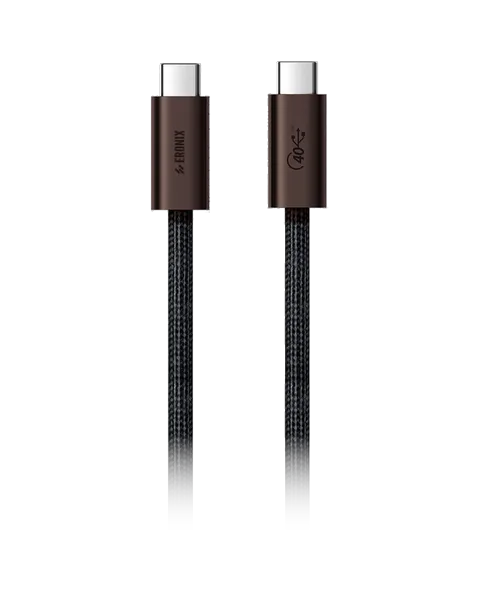
If one cable must charge fast and move large files, read both ratings. The Mac Cable USB4 carries 40 Gbps of data and 240 W of power over 1 m, so a Mac or iPad Pro takes the display, the files and the charge through a single cable.
Step by step
- Unlock the phone and choose File transfer or tap Trust.
- Swap to a cable you know carries data.
- Plug directly into another computer port, not a hub.
- Gently clean the phone's port if the plug feels loose.
- Restart both devices and reconnect.
Questions people ask
How can I tell if a USB cable is a data cable?
Check the packaging for a data rating such as USB 2.0, USB 5Gbps or USB 10Gbps. If only watts are listed, it likely carries USB 2.0 data or none. The quickest test is to connect a phone to a computer and see whether it offers file transfer after you unlock it.
Why does my Android phone only charge when connected to a PC?
Android usually defaults to charging only for privacy. Unlock the phone, pull down the notification shade, tap the USB notification and choose File transfer. If no notification appears, the cable may lack data wires, so try a different cable and a different computer port.
Why is my iPhone file transfer so slow over USB-C?
Apple says the cable included with iPhone supports USB 2 data speeds. iPhone Pro models can reach up to 10 Gb/s, but only with an optional USB 3 cable rated for 10 Gb/s. Base models run at USB 2 speed regardless of the cable.
Can a damaged cable still charge?
Yes. Power and data use different wires, so a cable with broken data wires can still charge. It may charge more slowly if the damage affects the wires used to negotiate fast charging. A frayed or kinked cable should be replaced, since damaged insulation is a safety risk.
Sources
- USB 2.0 (Wikipedia) · accessed 22 Nov 2026
- USB-IF: USB Type-C language, product and packaging guidelines · 20 Mar 2023, accessed 22 Nov 2026
- Apple Support: Charge and connect with the USB-C connector on your iPhone · accessed 22 Nov 2026
- ChargerLAB: Cable selection guide for everyone · accessed 22 Nov 2026
- USB-C (Wikipedia) · accessed 22 Nov 2026
USB-C Power Delivery
One connector, a negotiated contract.
Read →Explainer · 4 min readUSB-C ports: data speed vs charging power
Two cables, identical plugs. One copies a film in seconds, the other in half an hour.
Read →Explainer · 4 min readThunderbolt, USB4 and USB-C: what the logos mean
One oval plug, four different promises. How to read the small print on cables and ports.
Read →Explainer · 5 min readCan a 100 W charger damage your phone?
The watts on the brick are a ceiling, not a push. Heat is what your battery remembers.
Read →Explainer · 6 min readNew 14-inch MacBook Pro with M6: charger and cable guide
No charger in the box in India. Here is the wattage and the cable that unlock fast charge.
Read →Explainer · 5 min readUSB Power Delivery explained in one page
How a charger and a phone agree on power before it flows, and how to read the label.
Read →