Journal · Buying guide · 5 min read
Which cable for CarPlay and Android Auto?
Charging needs two wires. CarPlay and Android Auto need the other two as well.
You plug the phone into the car, the dashboard shows a charging icon, but CarPlay or Android Auto refuses to start. Or it starts and drops every time you hit a speed breaker. Is it the car, the phone, or the cable?
Short answerMost often the cable. CarPlay and Android Auto need a cable that carries data as well as power, in good condition, with the right plug at each end for your car and phone. Google asks for a high-quality USB cable. Use the port the car marks for phone projection, and avoid charge-only, damaged or loose cables.
What Apple and Google require
Google's Android Auto requirements page lists, for a wired connection, a phone on Android 11 or later with an active data plan, a compatible car, and a high-quality USB cable. For wireless Android Auto, it lists a compatible car and a phone with 5 GHz Wi-Fi support.
Apple's CarPlay guide says to plug the iPhone into the car's USB port, which may be marked with a CarPlay or smartphone icon. For Lightning iPhones it calls for a Lightning to USB cable. Apple's page on the USB-C connector adds that a compliant USB-C to USB-A cable works with cars that have USB-A ports, and that the cable included with USB-C iPhones supports charging and USB 2 speeds. If your car supports both modes, Apple says to connect by USB first; the iPhone then offers wireless CarPlay on future drives.
Speed is not the issue here. Apple notes the cable included with USB-C iPhones supports USB 2 speeds, and that is the kind of cable CarPlay is set up with, so a cable rated for USB 2 data is enough. The issue is whether the data wires are there and in good shape.
| Setup | Phone end | What you need |
|---|---|---|
| Android Auto, wired | USB-C | Android 11 or later, data plan, compatible car, high-quality USB cable |
| Android Auto, wireless | None | Compatible car, phone with 5 GHz Wi-Fi |
| CarPlay, iPhone 14 and earlier | Lightning | Lightning to USB cable, car's CarPlay port |
| CarPlay, iPhone 15 and later | USB-C | USB-C cable; USB 2 data is enough; USB-C to USB-A for USB-A cars |
Source: Android Auto Help and Apple Support, accessed Nov 2026
How the cable carries two jobs
A USB cable has wires for power and separate wires for data. A charge-only cable leaves the data wires out or does not connect them. On a wall charger you would never notice. In a car, the phone charges but the head unit never sees it, so projection never starts.
Damage shows up the same way. A cable that is bent sharply at the plug, crushed by a seat rail or worn at the strain relief can keep charging while its thin data wires break intermittently. That produces the classic symptom: projection that drops on bumps.
Think of a cable as a highway with a separate service road. Charging uses the highway. CarPlay and Android Auto use the service road too, for directions and music. If the service road is closed or full of potholes, the trucks still get through but the messages do not.
Power from the car port
A projection cable also charges the phone, but how fast depends on the car. Digital Trends explains that many built-in car USB ports follow the old USB data standard of about 500 mA, around 2.5 W, which can fall behind a phone running navigation. If your phone drains while projecting, the port is the limit, not the cable. Wireless projection plus a separate USB-C PD car charger in the 12 V socket is one way round it, where the car supports wireless mode.
When wireless projection is the better answer
Many newer cars support wireless CarPlay or wireless Android Auto. Google's requirements list a compatible car and a phone with 5 GHz Wi-Fi for wireless Android Auto, and Apple says a car that supports both modes offers wireless CarPlay after a first USB connection. Wireless removes the cable as a point of failure, but it uses more phone battery, so pair it with a capable car charger on long drives. Wired projection remains the more dependable choice in older cars and areas with heavy radio interference.
What to check before you buy
Match the car end. Look at the car's port: rectangular USB-A or oval USB-C. Choose a cable with that plug at the car end.
Match the phone end: USB-C for Android phones and iPhone 15 or later, Lightning for iPhone 14 and earlier.
Confirm it is a data cable. Packaging should mention data transfer or sync, not only charging.
Choose sturdy strain relief and a sensible length. A cable that reaches the mount without being stretched or bent sharply lasts longer and connects more reliably than one under tension.
Use the right port. Many cars have one port for projection and others for charging only. Look for the smartphone or CarPlay icon.
Look after the phone's port too
A worn or dirty phone port causes the same symptoms as a bad cable. Pocket lint packs into USB-C and Lightning ports over months and stops the plug seating fully, so the connection drops on bumps. Inspect the port with a torch, and if it needs clearing, use a non-metal tool gently with the phone switched off, or ask a service centre. A cable that clicks in firmly and stays put is the goal.
Myth corner
Myth: any cable that charges the phone will run Android Auto or CarPlay. Fact: charging uses only the power wires. Projection also needs working data wires, which is why Google asks for a high-quality USB cable and why charge-only or worn cables produce a charging icon with no projection.
The right one for you
When the car supports wireless CarPlay or Android Auto, the cable stops being the weak point and power becomes the question, because wireless projection uses more battery.
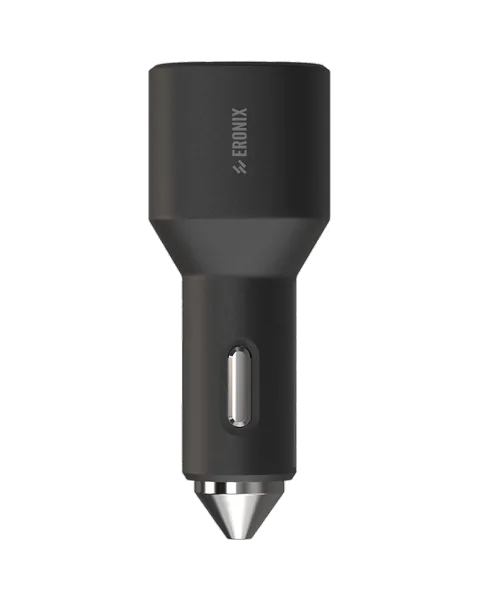
The Car Charger fits the 12 V socket, takes 12 or 24 V, and offers two USB-C ports at 65 W and 30 W with PD and PPS, so the phone is not left on a car port's 2.5 W and a laptop can charge beside it. Its aluminium body sits flush in the socket.
Step by step
- Check whether your car's port is USB-A or USB-C.
- Check whether your phone uses USB-C or Lightning.
- Choose a data cable with those two plugs.
- Plug into the car port marked with a smartphone or CarPlay icon.
- Route the cable so it is not stretched or bent sharply.
Questions people ask
Why does Android Auto keep disconnecting?
The most common cause is the cable: a charge-only, damaged or loose cable that loses its data connection on bumps. Try a different high-quality data cable, use the car's port marked for phone projection, and check the phone's port for lint. Updating Android Auto and the phone can also help.
Can I use a USB-C to USB-C cable for CarPlay?
Yes, if your car has a USB-C port and your iPhone has USB-C. For cars with USB-A ports, Apple says a compliant USB-C to USB-A cable works. Lightning iPhones need a Lightning cable with the plug that matches the car's port.
Does cable length matter for Android Auto?
A cable long enough to reach the mount without strain works best. Very long or extended cables add more points of failure and can be less reliable for data. Avoid joining cables with adapters or extensions when a single cable of the right length will do.
Why does my phone drain while using CarPlay or Android Auto?
Many built-in car USB ports supply only about 500 mA, roughly 2.5 W, according to Digital Trends. Navigation, a bright screen and music can use more than that. If your car supports wireless projection, a USB-C PD charger in the 12 V socket can charge the phone faster.
Sources
- Android Auto requirements (Android Auto Help) · accessed 22 Nov 2026
- Set up Android Auto (Android Auto Help) · accessed 22 Nov 2026
- Use CarPlay with your iPhone (Apple Support) · 6 Mar 2025
- Charge and connect with the USB-C connector on your iPhone (Apple Support) · accessed 22 Nov 2026
- Why your USB car charger hardly works at all (Digital Trends) · accessed 22 Nov 2026
USB-C Power Delivery
One connector, a negotiated contract.
Read →Buying guide · 4 min readWhich charger does the Galaxy S26 Ultra need?
Sixty watts on the box. Here is what it takes to get it.
Read →Buying guide · 5 min readWhich charger does the iPhone 18 Pro need?
Half a battery in 15 minutes, but only if your charger speaks one new word: AVS.
Read →Buying guide · 4 min readWhich car charger can fast-charge an iPhone?
Why the USB port in your dashboard loses to the satnav, and what to plug in instead
Read →Buying guide · 4 min readWhich charger does the iPhone 18 Pro Max need?
The biggest iPhone battery yet, filled to half in the time it takes to drink a chai.
Read →Buying guide · 5 min readWhich charger does the Galaxy S26 need?
Three phones, three speeds, one protocol called PPS. Here is what to buy and what to skip.
Read →