Journal · Explainer · 4 min read
How to set up spatial audio
Ten minutes of setup, including a quick ear scan, and films start to sound like a room
Apple's personalised spatial audio asks you to hold your iPhone about 30 cm from your face and slowly turn your head, then scan each ear. It feels like a passport photo for your hearing. Is it worth the minute, and where are the switches?
Short answerOn iPhone, open Control Center, touch and hold the volume slider and tap Spatial Audio, then choose Fixed or Head Tracked. Personalise it once in Settings under your earbuds' name. On Android 13 or later, open the earbuds in Bluetooth settings and turn on spatial audio and, if offered, head tracking. Then play content mixed for it.
Spatial audio by the numbers
Apple's support page lists spatial audio on AirPods 3, 4 and 5, AirPods Pro and AirPods Max, with three modes on iPhone and iPad: Off; Fixed, which places sound around you without tracking; and Head Tracked, where sound appears to come from the device as you move. Settings are saved for each app.
Personalised spatial audio needs an iPhone running iOS 16 or later with a TrueDepth camera. Apple's steps: hold the iPhone about 12 inches, roughly 30 cm, in front of your face and turn your head slowly in a circle; then hold it out at about 45 degrees to each side to capture each ear. Apple says camera data is processed on the device and images are not stored.
Android added the plumbing in Android 13. Google's platform documentation says head tracking needs a sensor inside the headphones that reports to the phone using a standard HID format over Bluetooth, and recommends a round trip from head movement to sound of under 150 ms. It suggests LE Audio where available. Spatial audio is on by default when the phone supports it.
Content still matters. What Hi-Fi? explains that spatial audio processes 5.1, 7.1 and Dolby Atmos mixes so sound seems to come from the front, sides, behind or above. Apple Music carries thousands of Dolby Atmos tracks; sound-only spatial playback works with any headphones, while head tracking needs compatible AirPods or Beats.
| Item | iPhone | Android |
|---|---|---|
| System version | iOS 16 or later for personalisation | Android 13 or later |
| Extra hardware | TrueDepth camera for the ear scan | Head-tracking sensor in the headphones |
| Modes | Off, Fixed, Head Tracked | Spatial audio, head tracking if offered |
| Latency target | Not published | Under 150 ms, head movement to sound |
| Content | Dolby Atmos, 5.1 and 7.1 mixes | Dolby Atmos, 5.1 and 7.1 mixes |
Source: Apple Support; Android Open Source Project; What Hi-Fi?
How spatial audio fools your ears
Your head and the folds of your outer ear change sound slightly depending on where it comes from. A note from behind reaches you with a different colouring than one from in front. Scientists describe this with a head-related transfer function. Spatial audio applies a model of those filters to each sound, so a voice can seem to sit in front and rain can fall above.
Think of a tailor-made shirt against one off the rack. A generic filter fits most heads roughly. The ear scan is the tailor's measurement: it fits the filter to your ears, which is why personalised spatial audio often sounds more convincingly outside your head.
Head tracking adds motion sensors. When you turn your head, the earbuds report it and the sound field is counter-rotated, so the dialogue stays with the screen. If that movement lags, the illusion breaks, hence Google's under-150 ms target.
Step by step
iPhone, turning it on: wear the earbuds, open Control Center, touch and hold the volume control, tap Spatial Audio and pick Fixed or Head Tracked.
iPhone, personalising: with the earbuds connected, open Settings, tap their name, then Audio and Routing, Personalized Spatial Audio, Personalize Spatial Audio, and follow the face and ear scan. For the ear views, Apple asks you to hold the phone in one hand at about 45 degrees to that side and slowly turn your head the other way, then swap hands.
Apple Music: open Settings, Music, Audio and set Dolby Atmos to Automatic, or Always On for headphones from other brands, as What Hi-Fi? describes.
Android: open Settings, Connected devices or Bluetooth, tap the gear beside your earbuds, and turn on spatial audio. Turn on head tracking if the option appears.
Test it with a film scene or an Atmos track. If it sounds hollow or odd, try Fixed instead of Head Tracked, or switch it off for plain stereo music.
What to check before you buy
Check head tracking separately from spatial audio. Many earbuds can play spatial mixes, but only those with motion sensors can track your head.
Check your phone. Android needs version 13 or later and maker support; iPhone personalisation needs iOS 16 and a TrueDepth camera.
Check your apps. Spatial audio is not available for all apps or content, as Apple notes. Streaming apps and music services decide whether a title has a spatial mix.
Check latency on video. If the earbuds support LE Audio or a low-latency mode, head tracking and lip-sync both benefit.
Myth corner
Myth: spatial audio makes every song sound better. Not always. What Hi-Fi? notes reviewers often preferred the original stereo mix for some tracks, because results depend on how each was mixed. Use it where it adds something, such as films and Atmos albums, and switch it off where it does not.
The right one for you
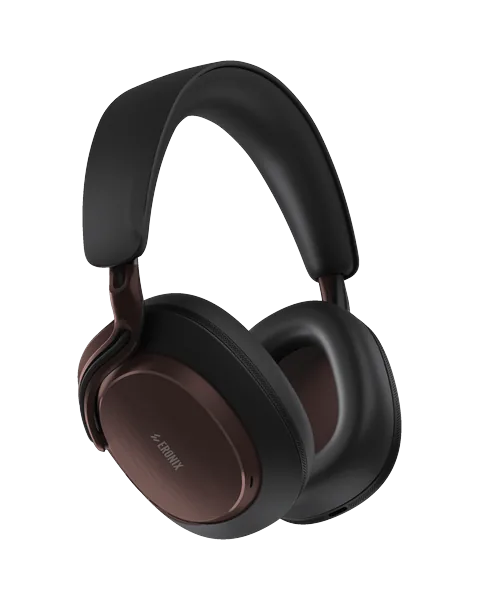
If spatial audio is the reason you are choosing, find it named on the spec sheet. The Argent lists spatial audio with adaptive noise cancelling, six microphones and 50 hours of playback, and is made for iPhone and Galaxy.
Its metal yoke and replaceable ear pads are built for daily wear. Head tracking is a separate line from spatial audio, so confirm it on the product page if your films depend on it.
Step by step
- Connect your earbuds and check they support spatial audio.
- On iPhone, open Control Center, hold the volume slider and tap Spatial Audio.
- Choose Fixed or Head Tracked.
- Personalise it in Settings, under your earbuds' name, Audio and Routing, with the face and ear scan.
- On Android 13 or later, turn on spatial audio in the earbuds' Bluetooth settings.
Questions people ask
Do I need AirPods for spatial audio?
No for sound, yes for some features. What Hi-Fi? says Apple Music's sound-only spatial playback works with any headphones if Dolby Atmos is set to Always On. Head tracking and Apple's personalised profile need compatible AirPods or Beats. On Android, spatial features depend on the phone maker and the earbuds.
Should I use Fixed or Head Tracked?
Head Tracked keeps sound anchored to your screen as you move, which suits films on a phone or tablet. Fixed places sound around you but follows your head, which suits walking, lying down or travel, where constant re-centring can feel odd. Apple saves your choice for each app.
Why is spatial audio not working?
Check that the app and the track support it, that the earbuds are connected, and that the mode is not Off in Control Center or Bluetooth settings. On Android, the phone needs Android 13 or later and support from its maker. Head tracking appears only if the earbuds have a head-tracking sensor.
Is personalised spatial audio safe for privacy?
Apple says the camera data used to map your ears is processed on the device and images are not stored. If you use iCloud, the profile syncs across your Apple devices with end-to-end encryption. You can stop using it at any time from the same Settings menu.
Sources
- Apple Support: Control Spatial Audio and head tracking on AirPods · accessed 22 Nov 2026
- Apple Support: Listen with Personalized Spatial Audio for AirPods and Beats · accessed 22 Nov 2026
- Android Open Source Project: Spatial audio and head tracking · accessed 22 Nov 2026
- What Hi-Fi?: What is Apple Spatial Audio? · accessed 22 Nov 2026
- Head-related transfer function (Wikipedia) · accessed 22 Nov 2026
Acoustics
What a driver actually does.
Read →Explainer · 4 min readSpatial audio and head tracking, explained
Turn your head and the singer stays put. Here is the trick your earbuds play on you.
Read →Explainer · 5 min readLDAC, aptX, AAC: which codec your phone really uses
The logo on the earbud box is a promise. Your phone decides whether it is kept.
Read →Explainer · 5 min readWhat ANC can and cannot block
Why the bus engine fades but the conductor's voice does not, and what to check.
Read →Explainer · 4 min readTransparency mode: how earbuds let the world back in
Your earbuds can hear the platform announcement for you. Here is how, and where it stops.
Read →Explainer · 4 min readWhy earbuds sound different on iPhone and Android
Same earbuds, same song, two phones. The difference starts before the sound reaches you.
Read →