Journal · Explainer · 5 min read
Why does my laptop say 'slow charger connected'?
The warning is about watts. Charger, cable, port or hub: one of them is short.
A small warning pops up in the corner of the screen: slow charger. The laptop is plugged in, the light is on, yet the battery percentage barely moves, or even falls during a video call. Is the charger faulty, or is the laptop being fussy?
Short answerThe laptop is telling you it receives less power than it needs. The charger may be smaller than the laptop's rating, the cable may be limited to 60 W, the charger may be in a port that is not meant for charging, or a hub or dock may sit in between. Fix the weakest link and the warning goes away.
What the official guidance says
Microsoft's Windows support page on USB-C problems explains the slow charger message directly. It says the PC is getting less power than it needs, so it charges slowly, and that a battery icon with a warning may appear while the battery drains even though it is plugged in.
Microsoft lists six likely causes: the charger is underpowered or incompatible, the cable cannot carry the required power, the charger is not in the PC's charging port, dust is blocking the port, the charger is connected through a hub or dock, or it uses a non-standard, proprietary connector. Its first fix is to use the charger and cable that came with the PC, in the USB-C charging port, and to clean the port with compressed air.
Apple's guidance for Macs takes a similar line. It says a USB-C Mac can charge from any USB-C adapter or display, even one with higher or lower wattage than recommended, but that the best charging comes from at least the minimum recommended wattage. Apple recommends 67 W to 96 W for a 14-inch MacBook Pro and 140 W for the 16-inch.
| Cause | Fix |
|---|---|
| Charger below the laptop's rating | Use a USB PD charger at or above it on one port |
| Cable limited to 60 W | Use a cable rated 100 W, or 240 W for 140 W laptops |
| Wrong USB-C port | Use the port marked for charging |
| Hub or dock in between | Plug the charger straight into the laptop |
| Dust in the port | Clean it with compressed air |
Source: Microsoft Support, Fix USB-C problems in Windows, accessed 22 Nov 2026
How the laptop decides a charger is slow
When you plug in a USB-C charger, the laptop and charger negotiate using USB Power Delivery. The charger lists the voltages and currents it can supply, and the laptop picks one. The USB Implementers Forum explains that the standard reaches 100 W at 20 V with 5 A cables, and up to 240 W under PD 3.1.
If the best the charger can offer is below what the laptop wants, the laptop accepts it but warns you. The cable has a say as well: a USB-C cable without an electronic marker is treated as a 3 A cable, which caps it at 60 W at 20 V, however large the charger.
Think of it like a water pipe into a tank with a leak at the bottom. If the pipe is too narrow, water may still trickle in, but when you open the tap below, running a heavy app, the level falls. The warning is the laptop pointing at the narrow pipe.
The fix, step by step
Check the wattage. Look at the label of the original charger or the laptop's spec sheet. If your laptop shipped with 65 W and you are using a 30 W phone charger, that is the answer.
Check the cable. If the laptop needs more than 60 W, use a USB-C cable rated for 100 W or 240 W. Try the cable that came with the laptop.
Check the port. Many Windows laptops charge from only one or two of their USB-C ports, often marked with a power or battery symbol. Microsoft names using the wrong port as a common cause.
Remove the hub. Plug the charger directly into the laptop. Docks and hubs take part of the power for themselves and can drop the laptop below its threshold.
Clean the port. Lint in a USB-C socket can stop the plug seating fully. Microsoft suggests compressed air; do not use metal objects.
When a smaller charger is fine
A smaller charger is not dangerous. For overnight charging, or for light work such as documents and browsing, a 45 W charger on a 65 W laptop may keep up and fill the battery slowly. The warning is information, not a fault. It becomes a problem only when the battery drains while plugged in during real work.
Travel and shared chargers
The warning often appears away from your own desk: a meeting-room charger, a friend's phone adapter, a hotel USB socket. Hotel and car USB-A sockets typically offer far less than a laptop needs, and will at best slow the drain.
For travel, carry one USB PD charger rated at or above your laptop's adapter and a 100 W cable. It can charge your phone too, so it replaces two bricks, and you never have to depend on whatever charger happens to be on the table.
What to check before you buy
Find your laptop's rated adapter wattage and buy a USB PD charger that meets or exceeds it on one port.
On a multi-port charger, check the per-port split, not just the total.
Buy a cable rated for the wattage: 100 W for most laptops, 240 W for 140 W laptops.
Check which laptop ports accept charging before planning desk cable runs.
Myth corner
Myth: the slow charger warning means the laptop is being damaged. It means only that power is below the laptop's preference. USB PD hands over only what both sides agree on, and Apple notes a USB-C Mac can charge even from an adapter below its recommended wattage. It is slower, not harmful.
The right one for you
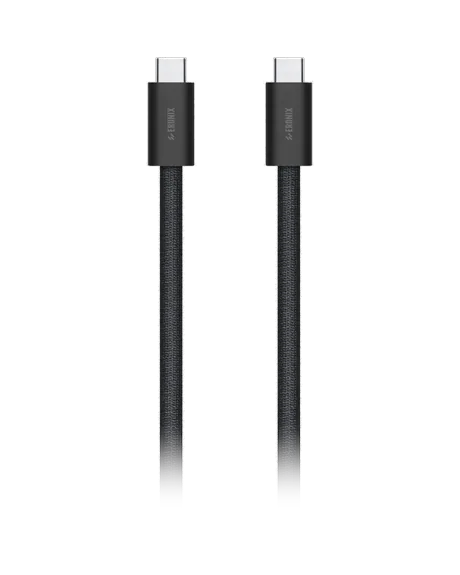
The fix is a charger that meets the laptop's rating on one port and a cable that carries it. The Entropy100 gives 100 W from its main USB-C port, above the 96 W Apple lists for the 14-inch MacBook Pro, with a second USB-C port at 30 W and a USB-A port at 22.5 W for the phone. The Power Cable 240 W is e-marked, so the laptop is not held to the 60 W limit of an unmarked cable, and its 2 m length reaches past the edge of the desk.
Step by step
- Find your laptop's rated adapter wattage on the label or spec sheet.
- Use a USB PD charger that meets that wattage on one port.
- Use a USB-C cable rated for 100 W or 240 W if the laptop needs more than 60 W.
- Plug directly into the laptop's charging port, not through a hub.
- Clean the port with compressed air if the plug does not seat firmly.
Questions people ask
Is it bad to use a lower-wattage charger on my laptop?
It is not harmful, only slower. The laptop accepts the lower power and may warn you. During heavy work the battery can drain while plugged in. For overnight or light use a smaller USB PD charger is fine; for full-speed use, match the laptop's rated wattage.
Why does my laptop charge slowly with a 100 W charger?
Most often the cable. A USB-C cable without an e-marker is limited to 3 A, about 60 W at 20 V. Other causes are a hub or dock in between, a port not meant for charging, or a multi-port charger sharing power with another device.
Which USB-C port charges my laptop?
It depends on the model. Many Windows laptops charge from only some USB-C ports, often marked with a battery, lightning or power symbol. Microsoft lists using a non-charging port as a cause of the slow charger warning. Check your laptop's manual or spec sheet.
Can I charge my laptop through a USB-C hub or dock?
Many hubs support power pass-through, but they use part of the power themselves. If the charger only just meets the laptop's rating, the hub can push it below and trigger a slow charger warning. Use a charger with headroom or plug it directly into the laptop.
What does 'PC isn't charging' mean on Windows?
Microsoft says it means the PC is not receiving charging power through its USB-C connection. The causes match the slow charger warning: a weak or incompatible charger, an under-rated cable, the wrong port, dust in the port, a hub in between, or a non-standard connector.
Sources
- Fix USB-C problems in Windows, Microsoft Support · accessed 22 Nov 2026
- Find the right power adapter and cable for your Mac notebook, Apple Support · accessed 22 Nov 2026
- USB Charger (USB Power Delivery), USB Implementers Forum · accessed 22 Nov 2026
USB-C Power Delivery
One connector, a negotiated contract.
Read →Explainer · 4 min readHotel room charging: making one socket work
One socket behind the bed, three devices, a 7 am meeting. Here is the plan.
Read →Explainer · 4 min readOffice desks in India: one charging setup for a whole team
Ten desks, twenty-three chargers, nobody can find a cable. There is a simpler standard.
Read →Buying guide · 5 min readWhich charger does your MacBook Pro 14-inch (M6 or M5 Pro/Max) need?
Three adapters, one laptop size. Here is the wattage the machine actually asks for.
Read →Explainer · 4 min readUSB PD 3.1 EPR and 240 W, explained
Same USB-C plug, more than twice the power. The trick is voltage, not a thicker wire.
Read →Buying guide · 4 min readOne charger for phone, tablet and laptop: how many watts?
Add up what each device takes, then decide how patient you are. That is the calculation.
Read →